Photo editing app: create amazing collages and montages on your phone.
 Put Renato
1,159
Put Renato
1,159
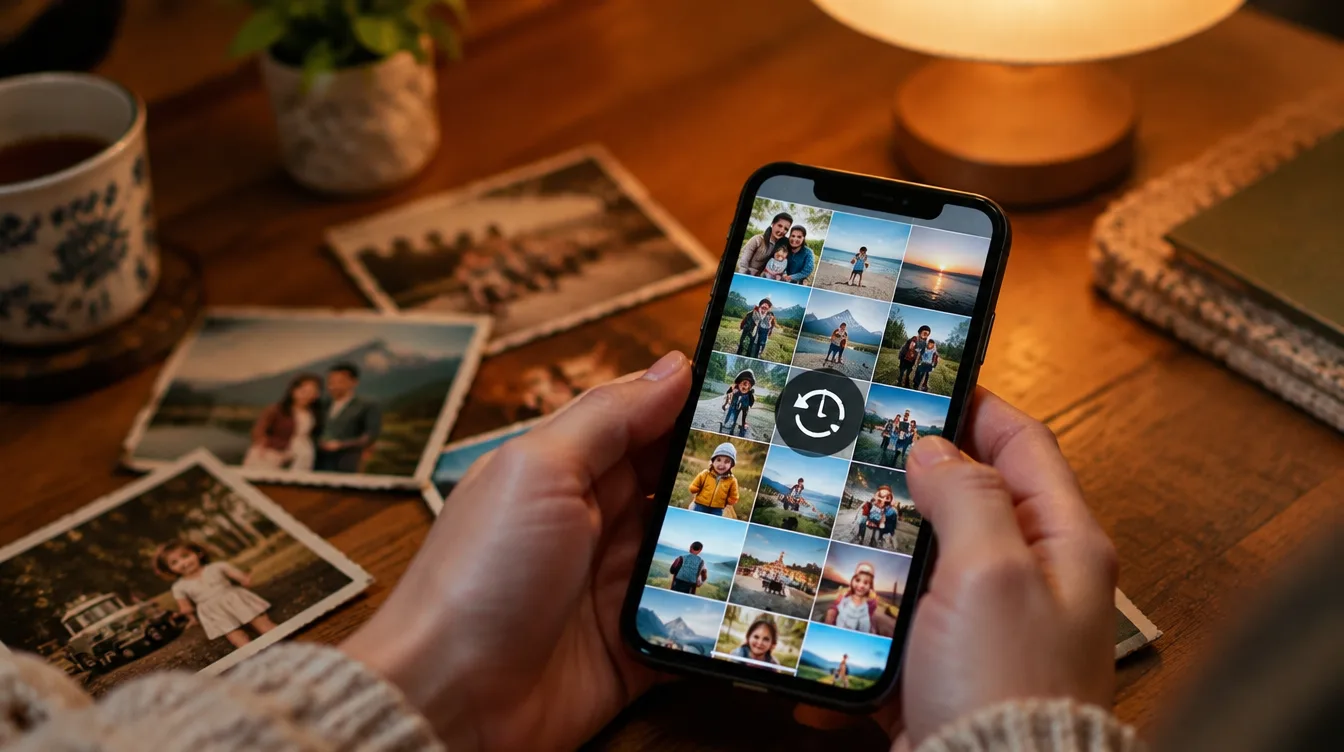
Mom's birthday is coming up, twenty photos from your last trip are just sitting in your gallery, a "before and after" you want to show everyone. A good photo montage solves all that in a single image. In the past, this required computer programs and hours of work. Today, with a photo montage app, you choose a template, swap the images, and have the result ready to post in less than five minutes, right on your phone.
In this guide you will see what you can create with these apps, how to make a photo collage in Canva step by step, how to combine two photos into one, how to cut out a person and place them on another background, which other apps stand out, and the collage ideas that are most successful.
What can you do with a photo editing app?
- Collages: Multiple photos arranged in a grid, mosaic, or free format, all within a single image.
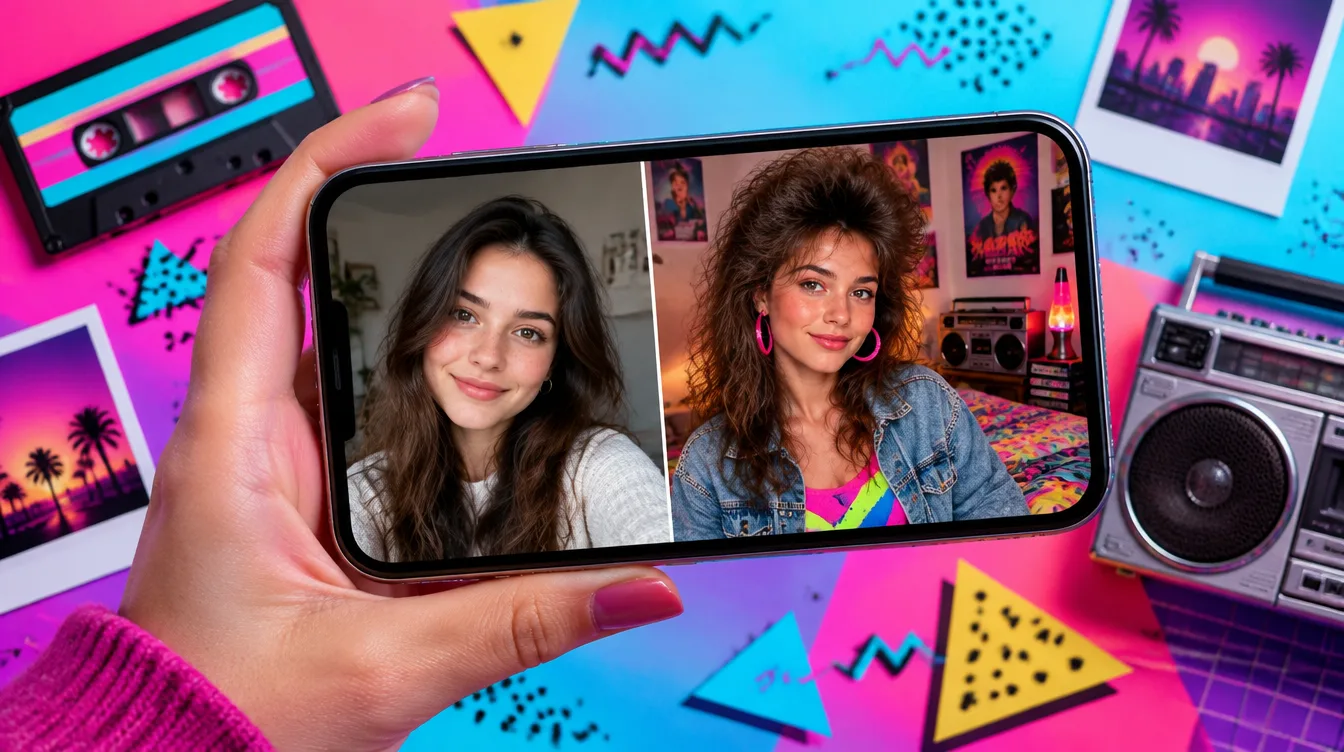
- Two photos side by side: The classic "before and after," "you and me," or "yesterday and today.".
- Clippings: Remove a person or object from the photo and place it against a different background.
- Frames and text: Borders, phrases, dates, and names for tributes and invitations.
- Figurines and elements: Hearts, balloons, stars, and thousands of ready-made decorations.
- Video montages: The photos flash by one after another, accompanied by music and transitions.
- Effects with AI: Improve pixelated photos, erase objects, and create new backgrounds.
Why use Canva to create photo collages?
Canva is one of the most widely used design apps in the world, with over 500 million downloads and a 4.8 rating on Google Play, as well as an iPhone version. Its secret lies in its templates: you don't start from scratch, you just change the photos and text within a pre-designed and beautiful layout.
- Thousands of collage templates: For birthdays, weddings, trips, Mother's Day, anniversaries, graduations, and much more.
- Grilles and frames: Drag the photos into the spaces and they will automatically fall into place.
- AI-powered photo editor: Background remover, magic eraser for erasing objects and optimizing pixelated photos.
- Texts and sources: Hundreds of font styles, with colors and effects.
- Library of elements: Stickers, shapes, icons, and illustrations to decorate the collage.
- Video montage: Turn your photos into a video with music, ready for Stories and Reels.
- Ready-made sizes: Post, story, cover, invitation, and wallpaper in the correct format for each network.
The download is free, and the free version already includes plenty of templates, grids, text, and elements. Some features, such as the background remover, are available in Canva Pro.
How to create a photo collage in Canva, step by step.
- Install Canva using the button at the top of this page, or from Google Play or the App Store.
- Sign in with your Google, Facebook, Apple, or email account.
- In the search bar, type photo collage or the theme of the montage, such as "birthday" or "Mother's Day".
- Choose a template you like and tap it to open it in the editor.
- Tap on each model photo and replace it with your own, choosing from the gallery.
- Edit the text with names, dates, and phrases. Change fonts and colors if you want.
- Tap on + to add stickers, frames, and other elements.
- Tap on To share and then in To go down to save to your gallery, or send directly to WhatsApp and Instagram.
How to combine two photos into one
It's the most sought-after montage, perfect for before-and-after photos, couple photos, and comparisons:
- In Canva, create a design in your preferred format, such as a square post or story.
- Tap on +, open Elements and look for grids.
- Choose the grid with two spaces, side by side or one on top of the other.
- Drag a photo into each space. Double-tap the photo to adjust the framing.
- Add text such as "before" and "after" if you want, and download the image.
Without installing anything, Google Photos also merges images: select the photos, tap on Add to or To create and choose Collage.
How to cut out a person and place them in another photo.
- Open the person's photo in the editor and use the background remover. In seconds, only the person remains in the image.
- Choose a new background photo, such as a beach, a party scene, or a landscape.
- Place the cutout over the background and adjust its size and position.
- To make it look natural, make sure the person is proportional to the background and choose backgrounds with lighting similar to that of the original photo.
On iPhone, you can crop without an app: open the photo in the Photos app, tap and hold on the person, and choose... Copy Or drag the clipping to another app.
Other photo editing apps
- Picsart: One of the most complete editors for mobile phones, with over 1 billion downloads on Google Play and an iPhone version. It features grid and free-form collages, background removal, over 60 million stickers, AI effects, and a sticker creator.
- Google Photos: It already comes pre-installed on many Android phones and has an iPhone version. It makes quick collages with templates and creates automatic montages with your memories.
- CapCut: The favorite for creating photo-to-video montages. It has ready-made templates with music and transitions: you just choose the template and the photos. It has over 1 billion downloads on Google Play and is also available for iPhone.
Photo montage ideas that are a hit!
- Birthday: A collage with photos of the person at various stages of life.
- Mother's Day and Father's Day: Old and current photos side by side with a loving phrase.
- Affair: The couple's timeline, from their first meeting to the present day.
- Trip: A mosaic showcasing the best places, perfect for your feed.
- Year in retrospect: A striking photo from each month.
- Before and after: Home renovation, diet, hair, garden, or children growing up.
- Invitations: Baby shower, children's party and wedding with photos of the honorees.
- Wallpaper: A collage with your favorite people for your phone screen.
Tips for a beautiful assembly
- Use clear photos: Small or blurry images look worse when enlarged on the grid.
- Choose a featured photo: Place the best one the biggest and the others around it.
- Combine the colors: Apply the same filter to all photos to make the collage look like a single image.
- Leave some breathing room: A thin border between the photos makes everything look more organized.
- Short text: A short, legible sentence attracts more attention than a paragraph.
- Get the format right: 4:5 for Instagram feed, 9:16 for WhatsApp stories and statuses, and 1:1 for square posts.
- Download in high quality: Prefer PNG or JPG files in good resolution to avoid losing sharpness when posting.
Frequently asked questions about photo editing
What is the best photo editing app?
Canva is one of the best because it has thousands of ready-made templates, works on Android and iPhone, and is easy to use. Picsart excels at cropping and effects, and CapCut is the best for video editing.
Is it possible to create photo collages for free?
Yes. Canva, Picsart, Google Photos, and CapCut are free to download and already allow you to create collages and montages without paying. Subscriptions unlock extra features.
How to create a photo collage with music?
Use video templates from CapCut or Canva: choose a template, select your photos, and the app will assemble the video with music and transitions. Then just save and post.
How do I combine multiple photos into one?
Use a collage template or grid in Canva, or select your photos from Google Photos and choose Collage. The photos will automatically fit into the spaces.
Does the image quality suffer on WhatsApp?
WhatsApp compresses images to send them faster. For higher quality images, send them as a document or enable HD photo sharing within the chat.
Conclusion
With a photo editing app, those images sitting in your gallery can be transformed into collages, tributes, invitations, and videos with music in just a few minutes. Canva offers ready-made templates for any occasion, and Picsart, Google Photos, and CapCut complete the kit for video editing and montages.
Install Canva, choose a template, and create your first design now.